Buying the wrong Office package usually looks harmless at checkout, then expensive a week later. You realize you needed Outlook, or your business needed commercial rights, or the software on one PC cannot be moved when the device is replaced. If you are trying to figure out how to choose Microsoft Office version without wasting time or money, the right starting point is not price alone. It is how you actually use the software. Buy Microsoft Office 2024 from www.digitalsoftwareplanet.com today and get the latest office softwares today!
For some buyers, a one-time purchase is the cleanest option. For others, a subscription makes more sense because it covers multiple devices, ongoing updates, and cloud features. The best fit depends on who will use it, how many devices need coverage, whether you need desktop apps or browser access, and how important long-term flexibility is.
How to choose Microsoft Office version based on use
Start with the simplest question: are you buying for one person, one household, or a business? That answer narrows the field fast.
If you are a home user who mainly needs Word, Excel, and PowerPoint on a single computer, a perpetual Office license can be the most cost-effective route. You pay once, install it, activate it, and keep using that version. This works well for students, freelancers, and everyday users who do not need constant feature updates or admin controls.
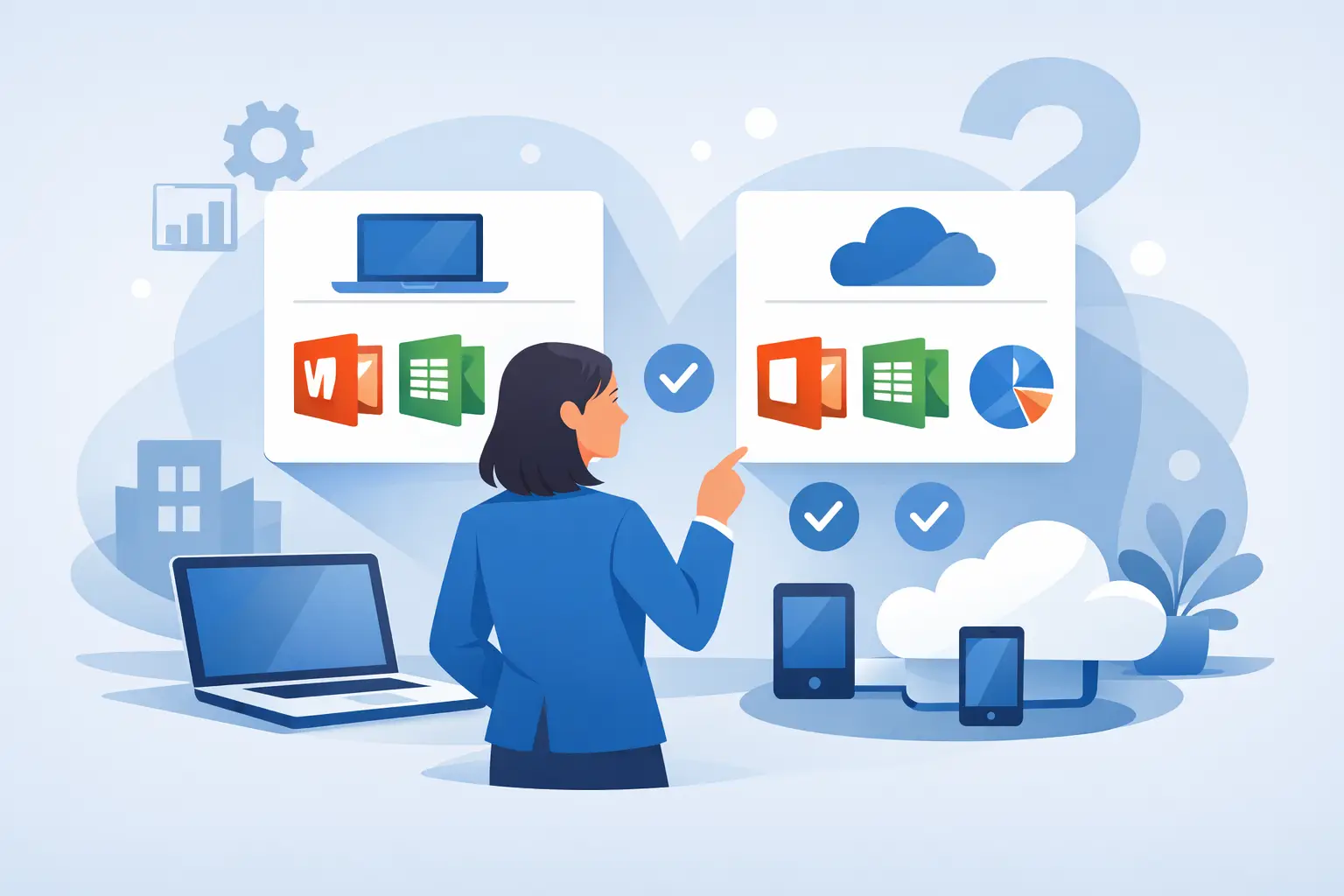
If you need Office across multiple devices, including a laptop, desktop, tablet, and phone, Microsoft 365 is usually the better fit. The subscription model gives you more flexibility, and it is often the easier choice for families or professionals who work in more than one place. You also get ongoing updates instead of being locked to one release.
Business buyers need to be more careful. A version that looks cheaper upfront may not meet commercial use requirements, may not include the right apps, or may not scale cleanly for teams. If several users need access, especially with business email, shared files, or admin management, a business-focused Microsoft 365 plan is often more practical than buying separate standalone licenses.
One-time purchase vs subscription
This is where most buying decisions are made.
A one-time purchase gives you a specific Office release, such as Office 2021 or another standalone edition. You own that license for the supported use case without monthly or annual renewal. For buyers who want predictable cost and local desktop apps, that is a strong advantage. It is especially appealing when you need Office on one machine and do not care about future feature rollouts.
The trade-off is that standalone versions are less flexible over time. You do not get the same ongoing improvements that subscription users receive, and your license terms may be tied to one device depending on the edition you buy. If your hardware changes often, that matters.
Microsoft 365 works differently. You pay on a recurring basis, but you get the newest app versions, cloud integration, and broader device access. For users who rely on OneDrive, collaboration, Outlook syncing, or regular updates, that recurring cost can be justified. For some businesses, it is not just justified – it is easier to manage.
If your main goal is the lowest long-term cost on one PC, a perpetual license often wins. If your main goal is flexibility, mobility, and up-to-date software, Microsoft 365 usually wins.
Which apps do you actually need?
A lot of buyers overpay because they buy the brand name first and the app list second.
Word, Excel, and PowerPoint are the baseline for most people. If that is all you need, you can avoid paying for higher-tier versions that add apps you will never open. But Outlook is a common tipping point. Many business users, remote workers, and freelancers need desktop email and calendar management, and not every Office edition includes it.
Access and Publisher are even more specific. Some buyers need them for legacy workflows, internal databases, mailings, or document production. Many do not. If your business depends on one of those apps, confirm that it is included before purchase rather than assuming all Office versions are the same.
Teams usage also causes confusion. Some people only need the ability to join meetings, while others need tighter integration with a subscription ecosystem. The same goes for OneDrive storage and collaboration tools. If your work depends on sharing files live with clients or coworkers, a subscription can make more sense than a standalone edition.
How to choose Microsoft Office version for business
Business buyers should think beyond the initial checkout screen. The right version is the one that fits deployment, compliance, user count, and support needs.
For a very small business with one or two users, standalone Office can still be a practical purchase if all you need are core desktop apps on fixed machines. It keeps costs clear and avoids subscription overhead. But once you have growing teams, remote work, employee turnover, or multiple devices per user, the picture changes.
Microsoft 365 business plans are built for user-based access rather than one-device thinking. That matters when staff need to work from office PCs, home laptops, and mobile devices without juggling separate purchases. Admin controls, user management, and collaboration features also become more valuable as operations grow.
IT administrators and procurement teams should also pay attention to activation and deployment. Buying the correct license type from the start avoids delays, reassignment issues, and compatibility surprises. This is where support matters. A lower sticker price is not a win if activation becomes a problem or the edition does not fit your environment.
Compatibility matters more than most buyers expect
Before you buy, check your operating system, hardware, and software workflow.
Some users are upgrading from older Office versions and need continuity with existing files, macros, templates, or add-ins. Others are replacing a machine and want a current version that will stay practical for years. If you use older business documents heavily, confirm that your selected version fits your workflow without forcing changes you did not plan for.
You should also consider whether you need Windows-only apps. Certain Office applications and features are more relevant on Windows environments, which is important for businesses standardizing across devices. If your team uses mixed hardware, that affects which product model makes the most sense.
For buyers replacing legacy software, compatibility is not just about opening documents. It can also involve activation rules, account setup, and whether the product is tied to a device or a user. That is why a fast decision is not always the cheapest decision.
Price matters, but value matters more
Everyone wants a good deal. That part is reasonable. But the cheapest visible option is only the best value if it covers the apps, license rights, and usage model you actually need.
A one-time Office purchase can offer excellent value when the fit is right. You avoid recurring fees and get dependable desktop software for everyday work. For students, households, and single-device users, this is often the most straightforward purchase.
A subscription can cost more over time, but it may replace multiple separate purchases while adding storage, updates, and easier multi-device use. For businesses, it can also reduce friction when onboarding staff or managing access.
The other part of value is legitimacy. Official licensing, secure delivery, and real activation support are not extras. They are part of the purchase. If a product looks unusually cheap but creates uncertainty around activation or authenticity, that is not savings. It is risk.
A practical way to decide before you buy
If you want a clean buying path, narrow your decision with five checks. First, decide whether you want a one-time purchase or a subscription. Second, confirm which apps you need, especially Outlook, Access, and Publisher. Third, match the product to your user type – personal, student, small business, or organization. Fourth, check how many devices or users need coverage. Fifth, make sure you are buying from a source that provides official licensing and support if installation or activation questions come up.
That process eliminates most bad purchases quickly.
For many buyers, the best answer is not the most expensive version or the newest label. It is the version that fits your device count, app requirements, and budget without creating extra admin work later. That is why practical guidance matters more than broad feature lists.
If you are still weighing options, keep it simple. Buy for the work you need to do this month and next year, not for features you might never use. A reliable seller such as Digital Software Planet can make that decision easier by pairing official license delivery with support that helps you get installed and activated without delay.
The right Office version should feel useful on day one, affordable over time, and easy to live with when your work gets busy.

